WCAG 2.0 definition
1.1.1 Non-text Content: All non-text content that is presented to the user has a text alternative that serves the equivalent purpose, except for the situations listed below.
- Controls, Input: If non-text content is a control or accepts user input, then it has a name that describes its purpose. (Refer to Guideline 4.1 for additional requirements for controls and content that accepts user input.)
- Time-Based Media: If non-text content is time-based media, then text alternatives at least provide descriptive identification of the non-text content. (Refer to Guideline 1.2 for additional requirements for media.)
- Test: If non-text content is a test or exercise that would be invalid if presented in text, then text alternatives at least provide descriptive identification of the non-text content. Sensory: If non-text content is primarily intended to create a specific sensory experience, then text alternatives at least provide descriptive identification of the non-text content.
- CAPTCHA: If the purpose of non-text content is to confirm that content is being accessed by a person rather than a computer, then text alternatives that identify and describe the purpose of the non-text content are provided, and alternative forms of CAPTCHA using output modes for different types of sensory perception are provided to accommodate different disabilities.
- Decoration, Formatting, Invisible: If non-text content is pure decoration, is used only for visual formatting, or is not presented to users, then it is implemented in a way that it can be ignored by assistive technology.
"Non-text content" can mean:
- foreground
imgelements; - background images (including classic "image replacement" techniques and Font Awesome social media icons);
- complex images—including
canvaselements; - image maps; or
svg, ASCII art, and other image types.
The intent of this Success Criterion is to make information conveyed by non-text content accessible through the use of a text alternative. Text alternatives are a primary way for making information accessible because they can be rendered through any sensory modality (for example, visual, auditory or tactile) to match the needs of the user. Providing text alternatives allows the information to be rendered in a variety of ways by a variety of user agents. For example, a person who cannot see a picture can have the text alternative read aloud using synthesized speech. A person who cannot hear an audio file can have the text alternative displayed so that he or she can read it. In the future, text alternatives will also allow information to be more easily translated into sign language or into a simpler form of the same language.
Note: in the case of non-text content used as the only visual label for interactive controls (e.g. button elements, link elements, input type="image" graphical submit buttons), a failure to provide an appropriate text alternative is a fail for both 1.1.1 Non-text Content and 4.1.2 Name, role, value (level A).
Note: at a basic level, audio and video elements also fall under the "non-text content" term. The presence of an audio/video, as well as its content/meaning, should also be conveyed with a text alternative. For long/complex audio and video elements, WCAG 2.0 has additional success criteria (1.2.1 Audio-only and video-only (prerecorded) (level A), 1.2.2 Captions (prerecorded) (level A), 1.2.3 Audio description or media alternative (prerecorded) (level A), 1.2.4 Captions (live) (level AA), 1.2.5 Audio descriptions (prerecorded) (level AA)). Failure to provide a transcript or similar alternative for time-based media should be reported as a failure against those success criteria, and not against 1.1.1 Non-text Content. However, in the context of 1.1.1 Non-text Content, it is still important that users know what the embedded audio/video is when they encounter it on a page so they can decide what action if any they want to take with it. A text alternative that describes the time-based media and/or gives its title must therefore be provided, and a failure to do so is noted in this criterion as a fail.
Note: if the page does not contain any non-text content, this criterion is marked as not applicable.
Some useful resources on the subject of alternative text:
Tests to perform
This test covers foreground images.
- Foreground images are typically coded as
img - Images that are links or buttons need alt text
- Background images are covered in test 1.1.1B
Input into spreadsheet
- Fail
-
Images and image links/buttons:
- are missing an
altattribute, - have an
alt=""attribute when the image or button is essential, or - that are essential do not have appropriate alt text.
- are missing an
- Pass
-
- images and image links/buttons are provided with appropriate alt text,
- images with a sufficient caption or associated text may have
alt="", and - decorative images have
alt="".
- N/A
- The sample has no images or image links/buttons.
How to test
Use at least one method to identify foreground images and evaluate:
-
There are three tests to run with WDT:
- 1. Use Images > Outline Images Without Alt Attributes
-
Images > Outline Images Without Alt Attributes 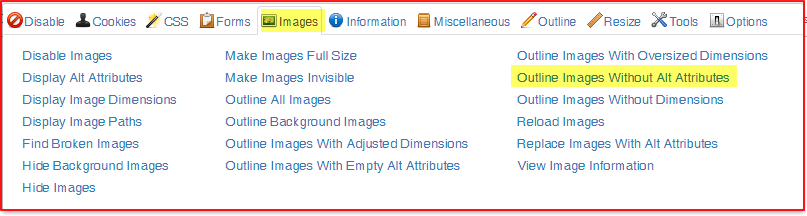
This outlines
imgelements missing analtattribute.Images without an alt attribute from the Web Developer Toolbar 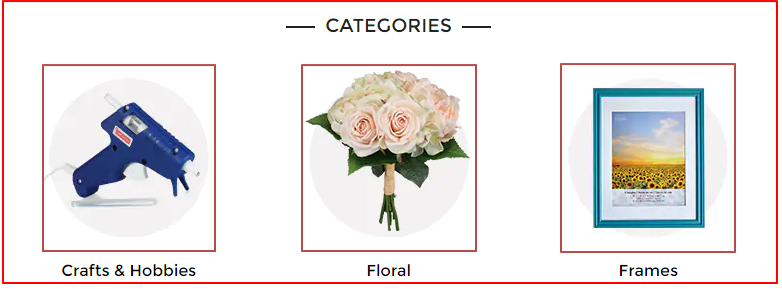
❌ When "Outline Images Without Alt Attributes" is enabled: images with an red outline fail 1.1.1A.
Make sure to turn off "Outline Images Without Alt Attributes" before proceeding.
- 2. Use Images > Outline Images With Empty Alt Attributes
-
This outlines images with empty
altattributes, which hides the image from screen readers.Images with an empty altattribute are outlined in the Web Developer Toolbar
✔ Non-essential images marked as empty
altattributes pass 1.1.1A.✔ Images with a sufficient caption or associated text and empty
altattributes pass 1.1.1A.❌ Essential images marked as empty alt attributes fail 1.1.1A.
Make sure to turn off "Outline Images With Empty Alt Attributes" before proceeding.
- 3. Use Images > Display Alt Attributes
-
If an image has an
altattribute, it will appear near the image in a red outline.Image alt text from Web Developer Toolbar 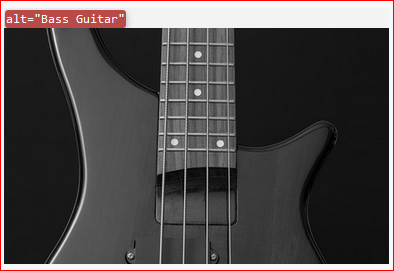
✔ Essential images with a correct, concise description pass 1.1.1A.
✔ Non-essential images with
alt=""pass 1.1.1A.✔ Images with a sufficient caption or associated text and
alt=""pass 1.1.1A.❌ Essential images with missing, incorrect, overly verbose, or incomplete descriptions fail 1.1.1A.
- What if I see an image, but WDT doesn't detect it?
- Some images are not foreground images. They may be background images or constructed in a with a different method (such as
svg). Make judgments about standard, foreground images WDT identifies. Later tests in the standards handle background images or differently constructed images. - I see small red slashes when I "Display Alt Attributes". What does that mean?
-
Small red slashes on a webpage with Images > Display Alt Attributes enabled 
Occasionally, background or non-standard images cause WDT to create a red slash. You can ignore these slashes for now. Tests later handle background images and non-standard images.
- What's the different between a missing
altattribute, an emptyaltattribute, andalt=""? -
- A missing
altattributer means theimghas noaltattribute at all. - An empty
altattribute means theimghas an alt attribute, but it has no text (ex.alt=""). Screen readers will skip these images entirely. alt=""is the code for an emptyaltattribute. Screen readers will skip these images entirely.
- A missing
-
- Use Images > Show Images
-
This visually displays the
alttext next to eachimgelement. Further, this triggers an alert that lists the number of images in the page that completely lack an alt attribute.The following screenshot shows an image with the alt text displayed after using the "Show Images" function.
Image alt text from Web Accessibility Toolbar 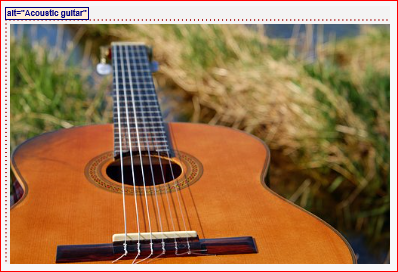
- Use Images > List Images
-
This opens a new browser tab, listing not only all
imgelements, but also anyinput type="image"graphical submit buttons, including their markup in the document.The following screenshot shows a list of images along with the markup displayed after using the "List Images" function.
List images from Web Accessibility Toolbar 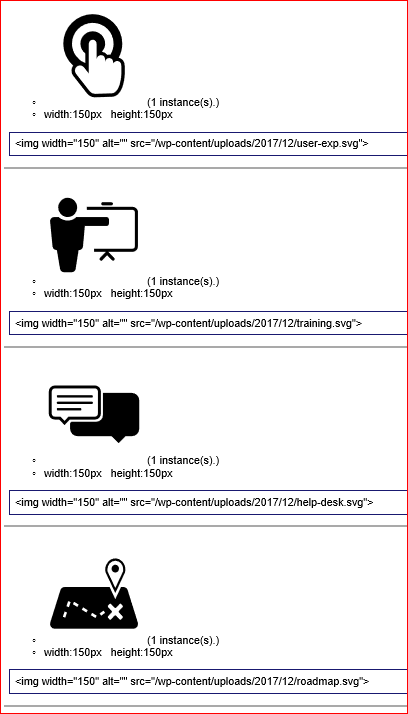
-
Manually inspect the page's markup (for instance, using the browser's built-in Developer Tools/F12 Tools) and search for any
imgandinput type="image"element.The following screenshot shows an image being inspected using the browser's built-in developer console.
Using built-in developer tools 
Handling Exceptions
For each image or graphical submit button, determine if its alt text is appropriate:
- Occasionally,
input type="image"submit buttons may lack analtattribute altogether, but have an alternativearia-labelwhich conveys the purpose of the button. In these instances, the only way to check is to do a manual inspection.
This test checks that essential images are not background images.
How to tell an image is essential
If the image or icon was removed from the page, would any critical information or functionality be lost? If yes, then the image or icon is essential.
Input into spreadsheet
- Fail
- Background (CSS) images used for content do not have inadequate text equivalents.
- Essential background images do not have a text alternative.
- Essential background images have an inadequate or inappropriate text alternative.
- Decorative background images have been provided with redundant text alternatives.
- Pass
- All background images used for content have text equivalents in markup, and these text equivalents accurately convey the meaning/purpose/information of the images.
- N/A
- The sample has no background images.
How to test
Identify background images
Identify all essential background images:
-
- Use Images > Hide Background Images
-
Visually remove background images and determine if the removal of these images caused essential content to disappear from the page.
The following screenshot shows social media links in a footer that are provided as background images without a text alternative. The social media links are not visible after running the "Hide Background Images" function.
Before removing background images 
After removing background images 
❌ Background images that are essential components fail 1.1.1B.
Background images are often used as contrast for text. If the text content can be highlighted, then it is not considered a fail.
Banner with image as background color 
Banner with background purple image removed; options can be highlighted with cursor 
- Use Images > Outline Background Images
- This outlines (most) page elements with a background image.
-
- Use Images > Remove CSS Images
-
Visually remove CSS background images and determine if the removal of these images caused essential content to disappear from the page.
The following screenshot shows social media links in a footer that are provided as background images without a text alternative. The social media links are not visible after running the "Remove CSS Images" function.
Before removing CSS (background) images
After removing CSS (background) images
Image buttons and dynamic controls
- Example: Printer Icon. If a printer icon was the only way a button conveyed the printing function, then the image (with alt text) is essential. If the text "Print" directly complements the icon in the button, then the printer icon is no longer essential.
- If the background image identifies a specific state (e.g., an Error icon that indicates incorrect input), this state must be described in the text label or hidden equivalent.
- If the image identifies the role, state, or name of a control, the visible or hidden text equivalent must include this information.
Complex images are charts and diagrams present in the page as a single image. Common examples are infographics, flow charts, and graphs. Sometimes these complex images are constructed using canvas, or even div and span tags.
For these complex images, an img alt="..." or canvas aria-label="..." may be insufficient, because the image will require a much longer, more structured text alternative (for example, a data table to represent a complex graph).
Input into spreadsheet
- Fail
- Complex images lack an appropriate text representation.
- Complex images do not have alt text.
- Complex images do not have a proper alternative (such as a data table, list, or link to an accessible alternative)
- Pass
- Complex images have an appropriate alternative text representation (either in the same page, or linked to from the current page).
- N/A
- The sample has no complex images.
How to test
Evaluate complex images
Manually inspect the page's code (for instance, using the browser's built-in Developer Tools/F12 Tools) to view the code of the image(s) in question.
✔ Complex img images with an adequate, brief alt attribute pass 1.1.1C.
✔ Complex img images with an adequate longdesc attribute pass 1.1.1C.
✔ Complex images that use non-standard image construction (span, div, etc) or canvas that have an adequate, brief aria-label attribute pass 1.1.1C.
❌ Complex images with alt text, aria-label, or longdesc attributes that are overly verbose or inadequate fail 1.1.1C.
❌ Complex images with no alt text that have are not adequately described in the text, conveyed in a data table or list, or handled in an accessible external resource fail 1.1.1C.
Complex single images
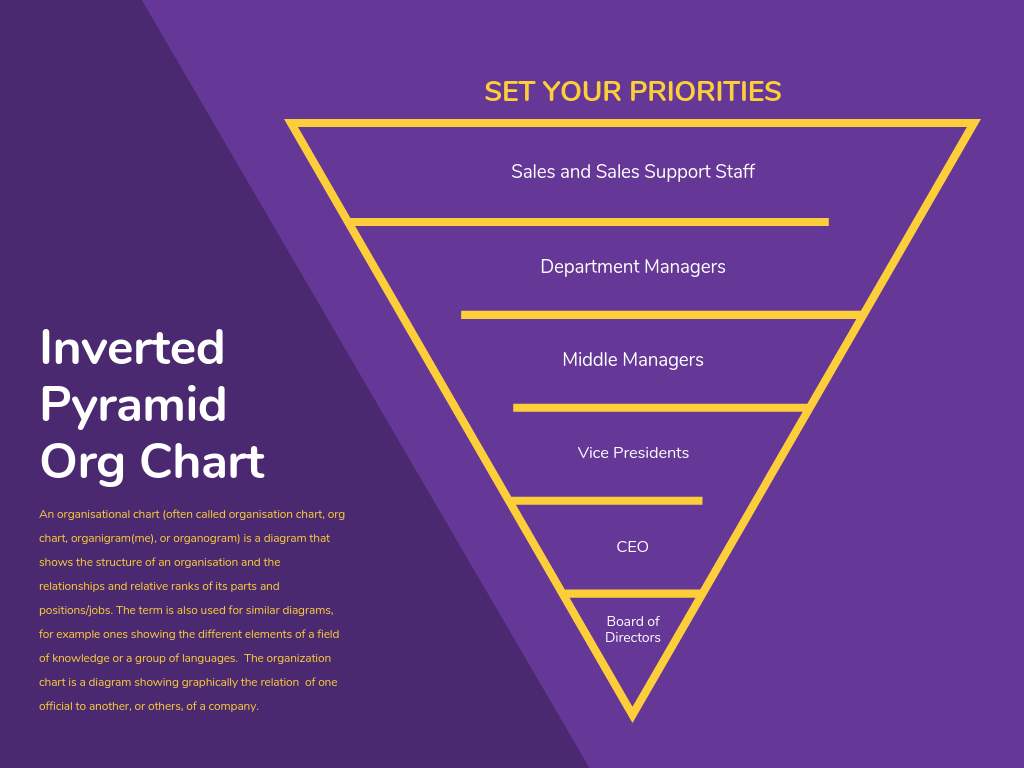
In the previous example, there is too much content to put into an alt attribute. If a single image has a great deal of information, then evaluate if that text is already mentioned in the main text.
❌ An img image with no adequate alt attribute, a text equivalent on the page, or a longdesc attribute fails 1.1.1C
span or divelements for charts
ul and span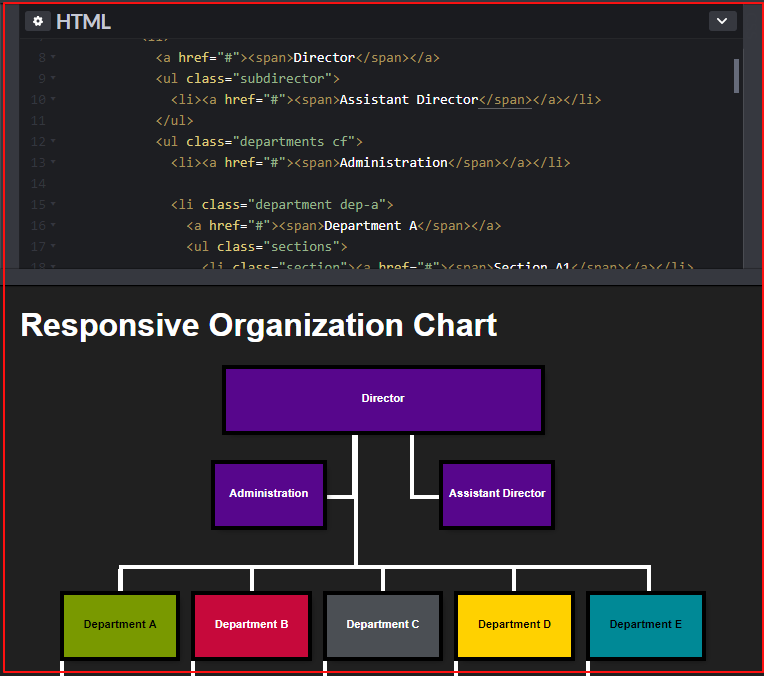
In the example, the content is structured as text in lists. Visually it is styled to look like an org chart, but will make sense to a non-visual user.
canvas elements
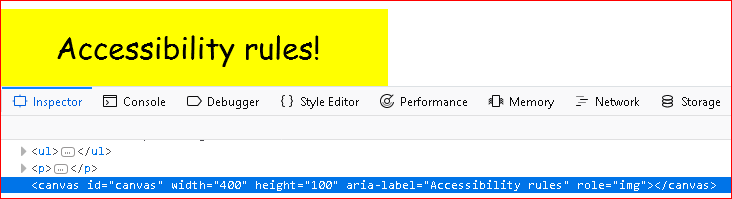
In the canvas example, the aria-label is the only method to provide an alternative description.
Test if image map areas have adequate alternative text.
Input into spreadsheet
- Fail
areatags lack adequate alt text:areatags do not have analtattribute.- the
alttext for theareatags don't adequately describe the contents.
- Pass
- All image map
areaelements have an appropriatealtattribute that describes the meaning/functionality/purpose of the image map area. - N/A
- The sample has no image maps.
How to test
How to inspect and evaluate image maps:
-
- Use Images & Show Image Maps
-
This opens a new tab, listing any server-side and client-side image maps found in the page; for client-side image maps, it further shows the
mapand itsarearegions.The following screenshot shows a list of images maps along with the markup after using the "Show Image Maps" function.
Image maps 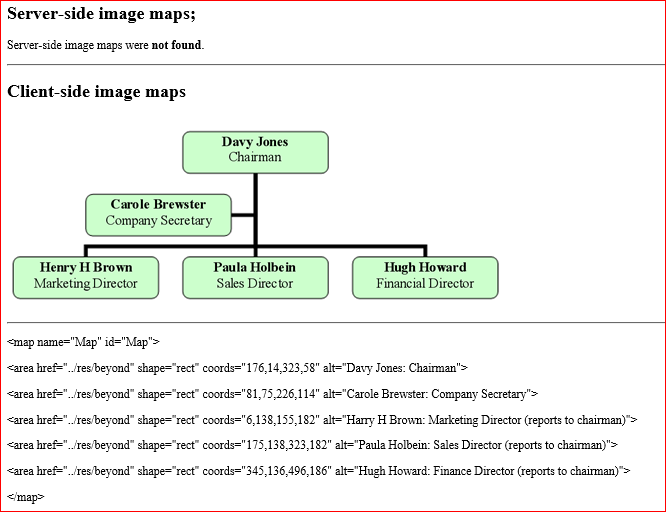
-
Search for usemap to find any
imgelements marked as having a client-side image map, then search formapto find the relevant map definition in the document.The following screenshot uses the browser's built-in inspection tool to inspect the
areaelements have appropriate text alternatives.Manually inspect image map 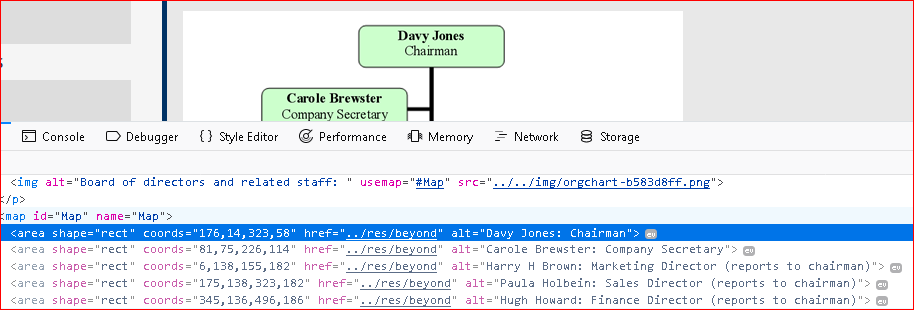
❌
areatags without adequate alt text fail 1.1.1D.
This test focuses on images/graphical elements implemented using alternative/advanced methods such as "ASCII art" (use of text characters to create a graphic), svg, canvas, or even styled non-semantic elements such as div or span elements.
Input into spreadsheet
- Fail
- Alternative images/graphical elements lack an appropriate alternative text representation.
- Pass
- Alternative images/graphical elements have an appropriate alternative text representation.
- N/A
- The sample has no alternative graphic elements.
How to test
Identify SVGs and other previously missed images
In general, if after following all other test procedures, there are still images/graphical elements left in the page which have not been checked:
- Manually inspect the page's markup (for instance, using the browser's built-in Developer Tools/F12 Tools) to view the code of these images/graphical elements.
- Manually check that non-visual equivalent information is available in text/HTML.
svg images
- If the
svgis nested within another element: -
An
aria-label="..."can be used to give the collection of elements a recognizable label.SVG nested within divandaelements hasaria-label
- Stand-alone
svgaccessibility -
An
svgneeds:- a
titletag (required) - a
desctag (optional)
Full accessibility:
titleanddesceach need unique ids,- an
aria-labelledby="..."atrribute references thetitleanddescids, and - non-interactive
svgimages should haverole="img".
SVG has titleanddescattributes, each with anidreferenced by thearia-labelledby="..."attribute, with arole="img"attribute to indicate image description is sufficient.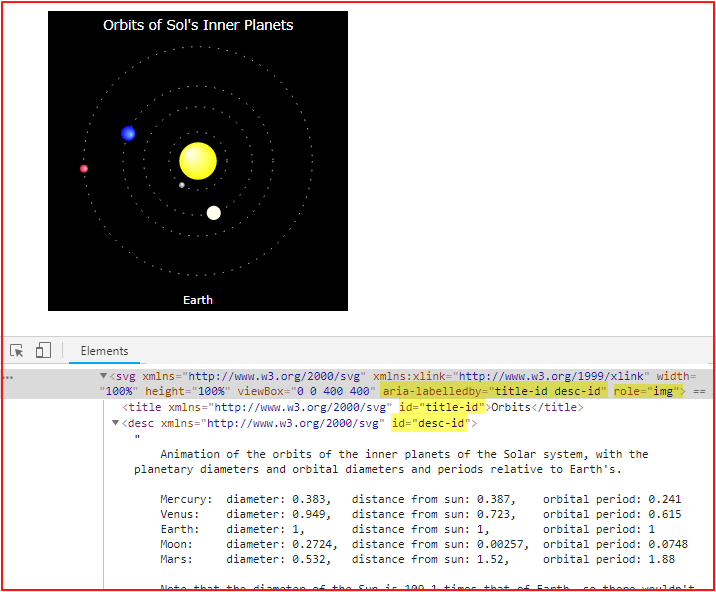
Refer to Using ARIA to enhance SVG accessibility for further details.
- a
ASCII art
"ASCII art" should be hidden from assistive technologies using aria-hidden="true" (to avoid the characters being read out/announced) or aria-label="..." (to have the screen reader read out something different than the characters).
For example: <span aria-label="(shrug emoticon)">¯\_(ツ)_/¯</span>.
✔ svg images with proper title tags (and desc tags where needed) with aria-labelledby="..." pass 1.1.1E.
✔ ASCII art is hidden from screen reader, and is replaced with a visually hidden alternative pass 1.1.1E.
✔ Other image types should use aria-label to describe image to pass 1.1.1E. This will need to be verified with a screen reader for test 4.1.2B.